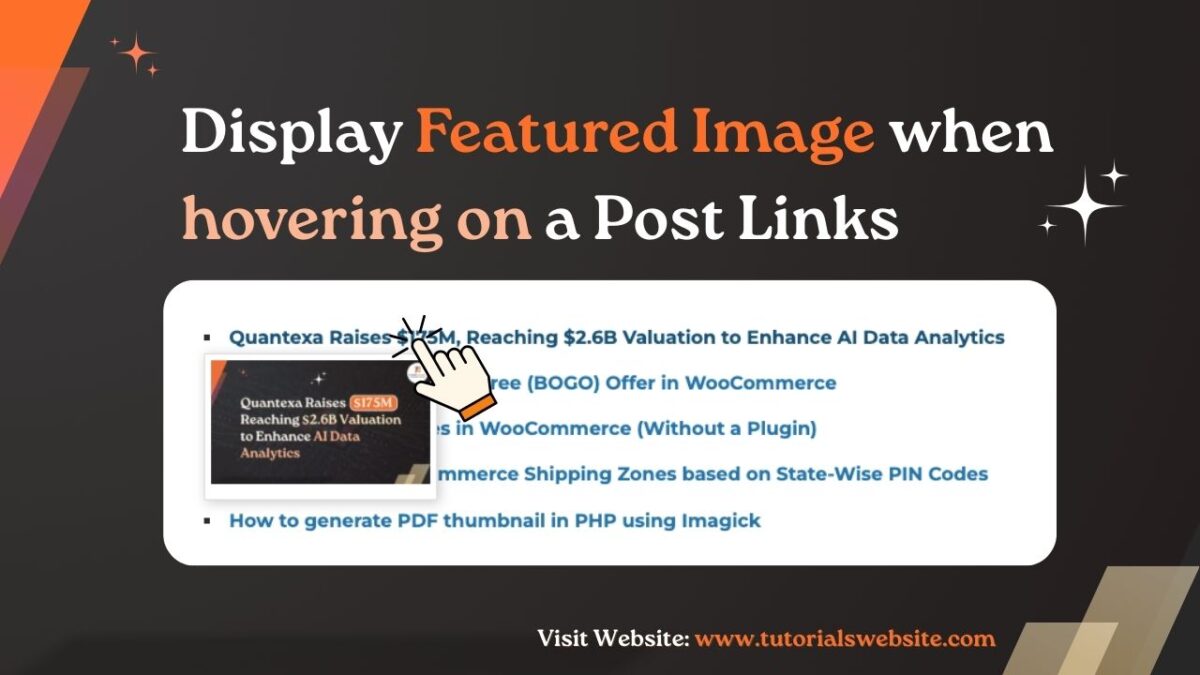
Displaying a featured image when hovering over a post link is a great way to enhance user experience and provide a visual preview of your content. In this tutorial, we’ll go step by step to achieve this effect using WordPress functions, HTML, CSS, and finally, we’ll show how to implement it as a shortcode.
Experience lightning-fast speed, rock-solid security, and world-class support tailored for WordPress. Simply better hosting.

How to display feautured image of a post when hovering on the posts link
Step 1: Fetching the Featured Image
Each WordPress post has a featured image, also known as a post thumbnail. To retrieve it, we use the get_the_post_thumbnail() function.
Basic Code to Get Featured Image
This function fetches the featured image of a post in the ‘medium’ size.
Suggested Read: Track and Display ‘Add to Cart’ Button Click Counts in WooCommerce
Step 2: Displaying Post Titles with Featured Images
Now, let’s create a simple HTML structure where post titles are displayed as links, and the featured image appears on hover.
Add This Code to Your Theme File
-
'post',
'posts_per_page' => 10,
);
$query = new WP_Query($args);
if ($query->have_posts()) :
while ($query->have_posts()) : $query->the_post();
?>
-
In the above code:
- Fetches the latest 10 posts.
- Displays each post title as a link.
- Includes a hidden
divthat contains the featured image
Step 3: Adding CSS for the Hover Effect
To make the featured image appear only when hovering over the title, add this CSS to your theme’s style.css file:
.featured-posts-list {
    list-style: none;
    padding: 0;
}

.featured-post-item {
    position: relative;
    margin-bottom: 10px;
}

.post-link {
    text-decoration: none;
    color: #0073aa;
    font-weight: bold;
}

.featured-image-preview {
    display: none;
    position: absolute;
    top: 100%;
    left: 0;
    width: 200px;
    background: #fff;
    border: 1px solid #ddd;
    padding: 5px;
    box-shadow: 2px 2px 10px rgba(0, 0, 0, 0.2);
    z-index: 9999;
}

.featured-post-item:hover .featured-image-preview {
    display: block;
}
This CSS ensures that the featured image appears when hovering over the post title.
Complete Code: Implementing the Code as a Shortcode
For easier use, we can convert this into a shortcode so it can be placed anywhere on the site.
Add This Code to Your functions.php File
function featured_posts_hover_shortcode($atts) {
ob_start(); // Start output buffering
// Parse shortcode attributes (default: show 10 posts)
$atts = shortcode_atts(
array(
'posts_per_page' => 10,
),
$atts,
'featured_posts_hover'
);
// Fetch latest posts
$args = array(
'post_type' => 'post',
'posts_per_page' => intval($atts['posts_per_page']),
);
$query = new WP_Query($args);
// Add inline CSS (loads only when shortcode is used)
?>
have_posts()) :
echo '- ';
while ($query->have_posts()) : $query->the_post();
$thumbnail = get_the_post_thumbnail(get_the_ID(), 'medium'); // Get featured image HTML
?>
-
No posts found.
'; endif; return ob_get_clean(); // Return buffered content } add_shortcode('featured_posts_hover', 'featured_posts_hover_shortcode');Now, you can use this shortcode on any post or page:
-
Future of Hospital Infrastructure & Medical Tourism Growth

-
Medical Tourism: Benefits, Costs, and Travel Abroad for Treatment
-
Shopify Confirms AI Shopping Can’t Bypass Checkout
-
Java Data Types and Variables Explained
-
Internal Links SEO: How to Boost Rankings & User Experience





To customize the number of posts:
-
Future of Hospital Infrastructure & Medical Tourism Growth
-
Medical Tourism: Benefits, Costs, and Travel Abroad for Treatment
-
Shopify Confirms AI Shopping Can’t Bypass Checkout
-
Java Data Types and Variables Explained
-
Internal Links SEO: How to Boost Rankings & User Experience
Output: View Demo
-
Future of Hospital Infrastructure & Medical Tourism Growth
-
Medical Tourism: Benefits, Costs, and Travel Abroad for Treatment
-
Shopify Confirms AI Shopping Can’t Bypass Checkout
-
Java Data Types and Variables Explained
-
Internal Links SEO: How to Boost Rankings & User Experience
Are you in need of a skilled WordPress developer to bring your website vision to life?
Look no further! Whether you need custom themes, plugin development, site optimization, or ongoing support, I offer expert WordPress development services to suit your needs.
Conclusion
Adding a hover effect to display featured images in WordPress is a simple yet effective way to enhance user experience. We first created a step-by-step implementation using PHP and CSS. Then, we converted the code into a reusable shortcode. Now, you can easily add this feature anywhere on your WordPress site to enhance user engagement.
This approach is lightweight, does not rely on additional plugins, and keeps your website optimized. Try implementing it on your site and make your post links more engaging!
Thanks for reading 🙏, I hope you found this tutorial helpful for your project. Keep learning! If you face any problems – I am here to solve your problems.
FAQs
Yes, you can modify the image size by changing 'medium' to 'thumbnail', 'large', or a custom size in get_the_post_thumbnail().
Yes, you can replace 'post' in the $args array with your custom post type name.
Use the provided shortcode by adding it to a page, post, or widget.
No, this is a lightweight solution. However, if you display too many posts, it could slightly impact page load time. Optimize images for best performance.
Yes! Modify the CSS styles to change the position, animation, or transition effects for a more dynamic experience.

Pradeep Maurya is the Professional Web Developer & Designer and the Founder of “Tutorials website”. He lives in Delhi and loves to be a self-dependent person. As an owner, he is trying his best to improve this platform day by day. His passion, dedication and quick decision making ability to stand apart from others. He’s an avid blogger and writes on the publications like Dzone, e27.co